
Reports, Reporting for Duty
Utilizing ArcGIS Reports
At Maurer-Stutz Geospatial Services, we have many projects that require reporting. Today, we want to help other ArcGIS Pro users utilize the reporting functions built within that system in an easy and effective way.
The Reports function allows you to quickly generate a report from your data. You can:
-
Display only the fields you specify for each feature.
-
Add visual elements like graphs and charts.
-
Filter the data to show only what’s relevant to the purpose of the report.
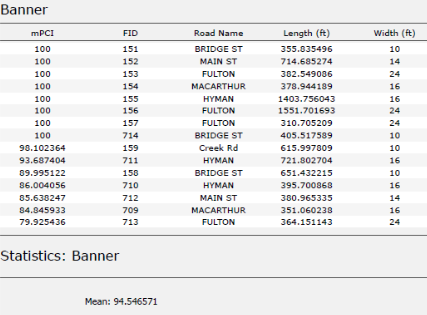
In this example, I used road assessment data as my source, and wanted to create a report showing me each road across 11 different towns, sorted from worst to best based on their score (mPCI).
Step 1: Select Your Data
-
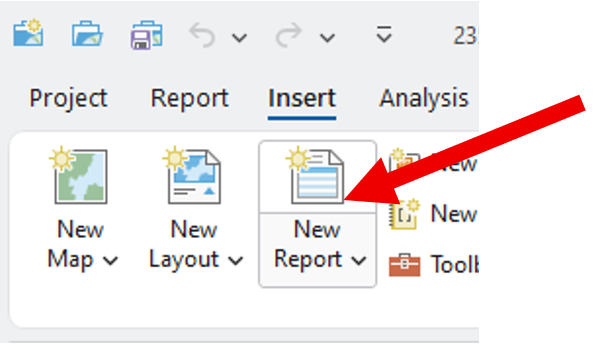
Select the map frame that contains the data you want to use.
Go to the Insert tab and click New Report.
Step 2: Choose a Template
-
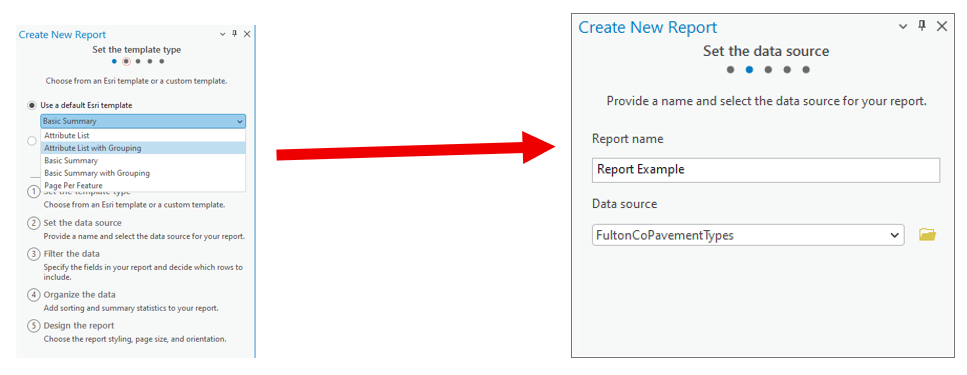
Select a report template.
Example: Choose Attribute List with Grouping. -
Name your report.
-
Select the data source (the dataset you’ll report on).
Step 3: Organize the Data
-
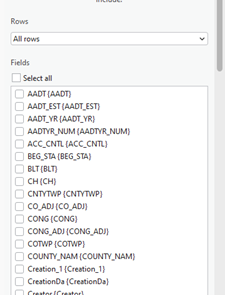
Choose the fields you want to display.
Example: For a road assessment, include: -
Road Name
-
Assessment Score
-
Length
-
Width
-
Material
-
Other relevant details
andnbsp;Tip: Drag and drop fields to reorder them in the report.
2. Select a grouping field to organize your report.
Example: Group by Municipality.
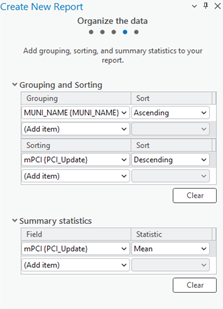
3. Define sorting rules within each group.
Example: Sort roads by Assessment Score (descending),
so the lowest scores appear first.
4. (Optional) Add group statistics:
-
Choose a field (e.g., Assessment Score).
-
Select a statistic (e.g., Mean) to summarize each group.
5. Set your page size and click Finish.
Step 4: Preview the Report
-
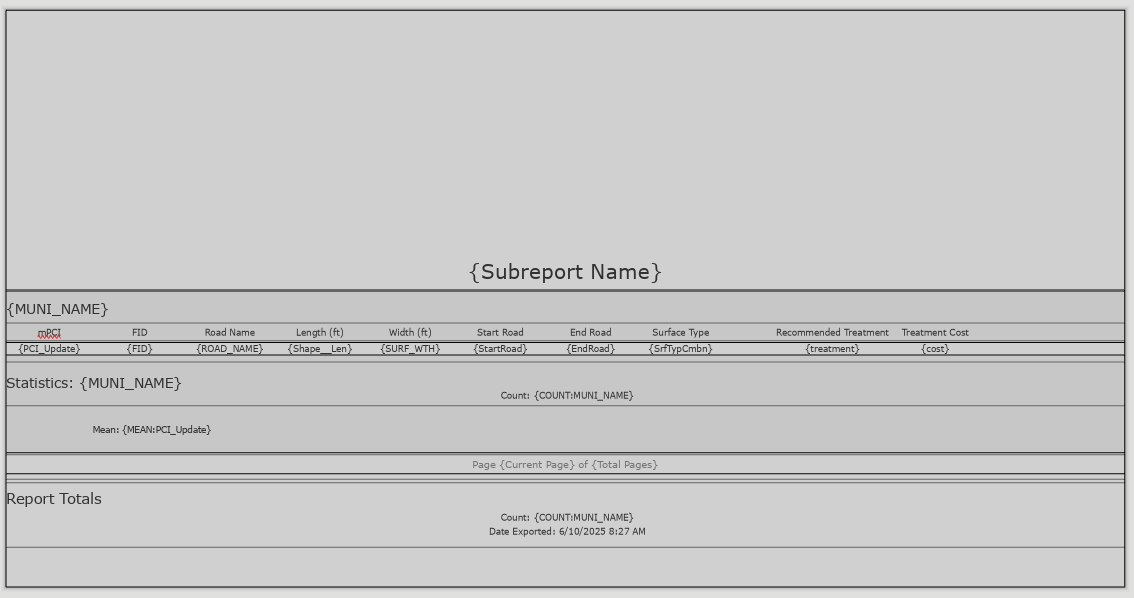
Your report will now display:
-
Each road grouped by municipality.
-
Roads within each group sorted by assessment score.
-
You can rename column headers to make them more readable.
(Just like editing text in Layout View.)
Step 5: Export the Report
-
Export the report as a PDF or another supported format.
-
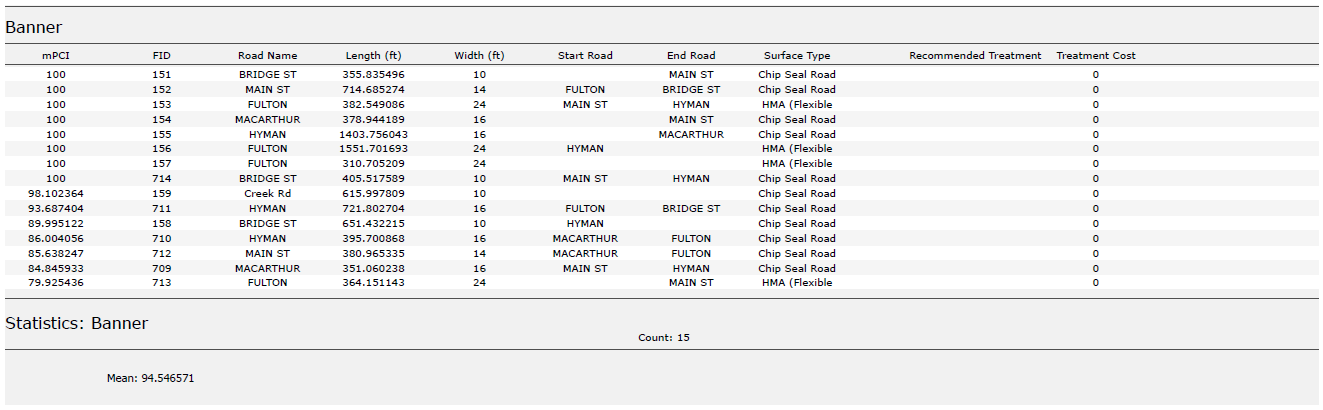
Your final report will include:
-
Organized, grouped, and sorted data.
-
Optional charts, statistics, or summary sections if added.
Additional Tips
-
Use the Insert tab to:
-
Add more fields or statistics after the report has been created.
-
Insert charts, dynamic images, or text blocks.
-
Choose where these additions appear:
-
Statistics Group: Appears at the end of each group (e.g., each municipality).
-
Report Totals: Appears at the very end of the full report.
We hope this has been a casual guide to creating reports in ArcGIS. It walks you through generating a report from your data, showing you how to pick what information to display, add visuals like graphs and charts, and filter what’s relevant. You’ll learn how to select your data, choose a template, organize your information by grouping and sorting, preview your report, and finally, export it as a PDF or other format. There are also some neat tricks for customizing your report, like adding more fields or charts after it’s been created
If you have other questions please don’t hesitate to contact us in the form below.